Short answer
In Rufus, choose GPT with target system UEFI (non CSM) for a PC that boots in UEFI mode, which covers almost every Windows 11 PC. Choose MBR with BIOS (or UEFI-CSM) for an older PC that boots in legacy BIOS mode. The pair is set for the computer that will boot the USB, not the one running Rufus.
How do you pick UEFI or BIOS in Rufus?
- Check the target PC. On the computer that will boot the drive, run msinfo32 and read BIOS Mode: UEFI or Legacy.
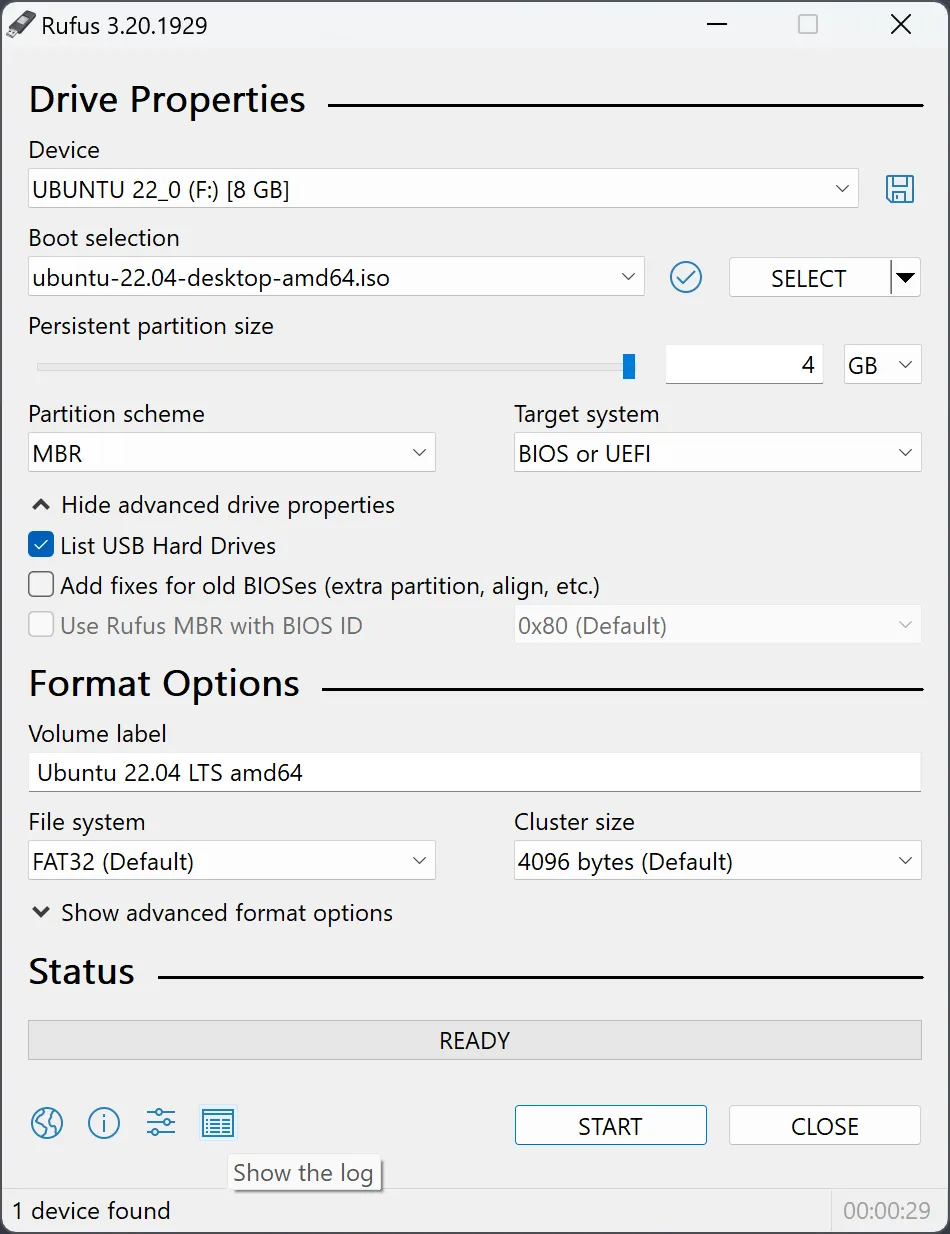
- Open the ISO in Rufus. Select the spare drive under Device and the ISO under Boot selection.
- Set the partition scheme. Choose GPT for a UEFI target or MBR for a legacy BIOS target.
- Confirm the target system. Check that Target system now reads UEFI (non CSM) for GPT, or BIOS (or UEFI-CSM) for MBR.
- Write and test. Press START, then pick the drive's UEFI or legacy entry in the target's boot menu to match.
How do you find the target PC’s firmware mode?
The firmware mode belongs to the computer that will boot the USB, not the one running the program. On a working Windows PC, press Win+R, type msinfo32 and read BIOS Mode in System Summary: UEFI or Legacy. Windows 11 requires UEFI, so a PC that runs Windows 11 is a UEFI target. For a PC with no working system, open its firmware setup and look for a boot mode, CSM or legacy option.
Why is a drive tied to one mode?
A Windows or Linux ISO often contains both a UEFI and a BIOS boot loader, but the drive the program writes follows the partition scheme you pick. The official FAQ explains that GPT produces a drive for native UEFI, while MBR serves BIOS and UEFI-CSM targets. The target labels in the checked release are UEFI (non CSM), BIOS (or UEFI-CSM), and BIOS or UEFI for images that can boot both ways from MBR (label text). When you change Partition scheme, the program updates Target system to the matching value, which is why the two are chosen as a pair.
What about Windows ISOs with files over 4 GB?
Current Windows ISOs contain an install file larger than 4 GB, which the FAT32 file system cannot hold (message text). For those images the program formats the drive as NTFS and adds a small UEFI:NTFS boot partition so UEFI firmware can still start it. You do not need to split the file. Release 4.8 added a way to split large files for FAT32 through the Alt+E enhanced mode (source), but the release notes call it much slower than the NTFS route.
How do you test the result?
Open the target’s boot menu, often F12, F11, F8 or Esc at power-on, and pick the USB entry that matches the mode you wrote. A GPT drive shows as a UEFI entry. If the menu lists both a UEFI and a legacy entry, choose the one for the mode you set. If nothing boots, recheck BIOS Mode and rewrite with the other pair, following the bootable USB guide. Erase warning: each rewrite destroys every partition on the selected USB again.
| Target PC boots in | Partition scheme | Target system | Notes |
|---|---|---|---|
| UEFI (most PCs since 2012, all Windows 11 PCs) | GPT | UEFI (non CSM) | Usual choice for Windows 10 and 11 |
| Legacy BIOS | MBR | BIOS (or UEFI-CSM) | Older PCs, or UEFI PCs with CSM turned on |
| Unknown, several PCs | MBR | BIOS or UEFI | Offered only for images that boot both ways from MBR; test on each PC |
Frequently asked questions
Is GPT always the correct Rufus choice?
No. GPT pairs with UEFI, which fits almost every current PC, but a PC that boots in legacy BIOS mode cannot start a GPT/UEFI-only drive. Check the target's BIOS Mode in msinfo32 first.
Why does a written USB fail to boot?
The partition scheme and target system may not match the computer's boot mode, or the boot menu entry chosen may be the other mode. The ISO or drive can also be faulty. Check firmware settings and test before rewriting.
Can one Windows ISO boot both modes after writing?
The official Rufus FAQ says Windows installation ISOs that support both modes are written for one mode according to the selected options. The Alt+E shortcut allows a dual UEFI and BIOS mode for Windows media, but the changelog warns that the FAT32 file splitting it relies on is much slower than the default NTFS route.