Short answer
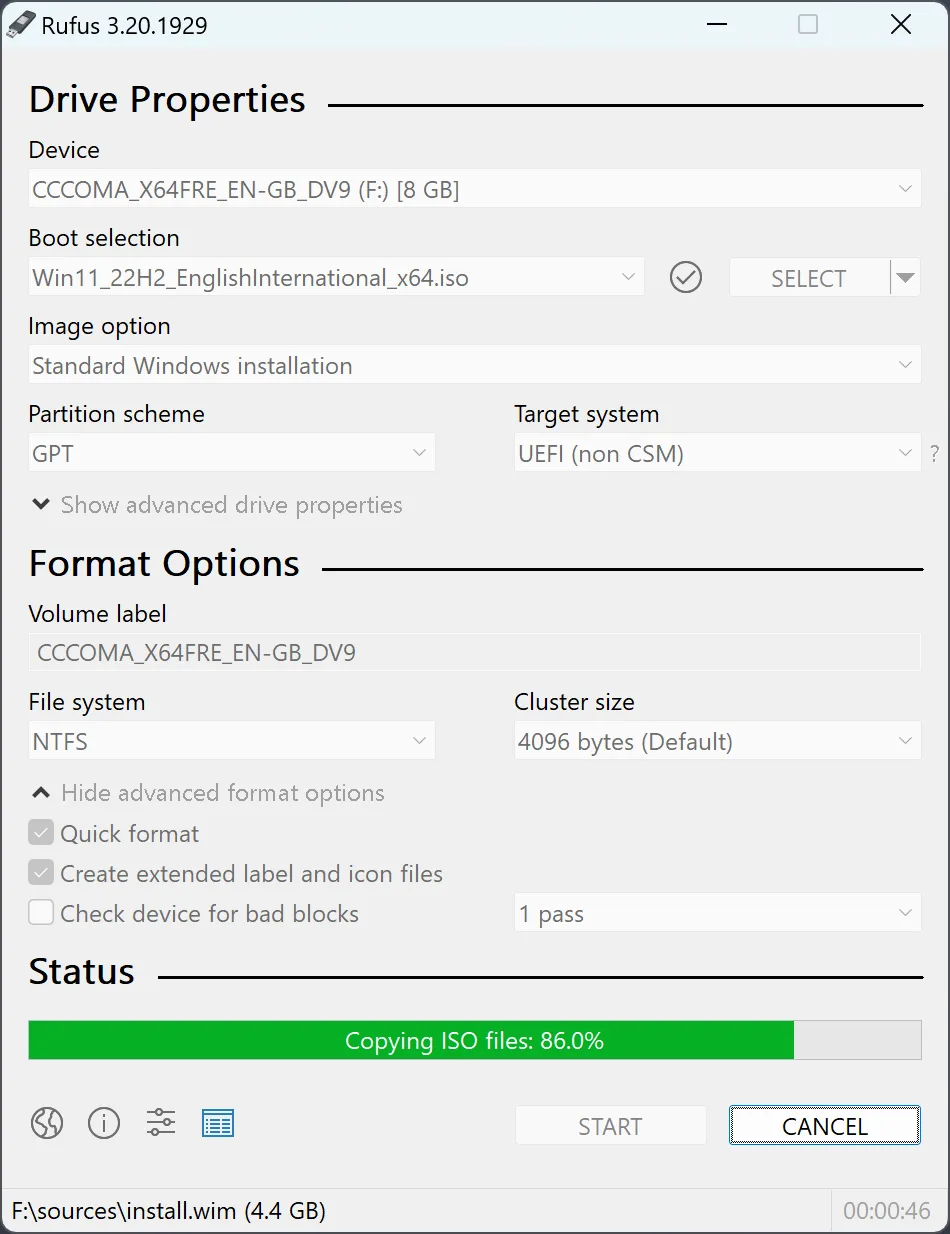
To create a bootable USB with Rufus, open the official executable, pick the spare drive under Device, choose a trusted ISO under Boot selection, set Partition scheme and Target system for the target PC, then press START. The write erases the whole selected drive, so back it up first and boot-test the result.
How do you create a bootable USB with Rufus?
- Back up the spare USB. Copy any file you need off the USB drive and unplug every other removable drive.
- Open Rufus. Run the official executable and accept the Windows administrator prompt.
- Select the drive. Under Device, pick the spare USB and compare its name and capacity with the drive you inserted.
- Select the image. Under Boot selection, click SELECT and open the ISO you downloaded from its publisher.
- Match the target firmware. Set Partition scheme and Target system for the computer that will boot the drive: GPT for UEFI, MBR for legacy BIOS.
- Start the write. Press START, read every dialog, and confirm only when the selected device is the spare drive.
- Test the drive. Wait for READY in the status bar, eject the drive safely, and choose it in the target computer's boot menu.
What do you need before you start?
A bootable USB needs three things: a spare USB drive you can erase, an ISO from the operating system’s publisher, and the firmware mode of the computer that will boot it. The utility runs on Windows 8 or later, according to the official download page, and asks for administrator rights when it opens (manifest). There is no setup wizard. Microsoft asks for a drive of at least 8 GB for a current Windows installer, so check the capacity first.
Which settings does Rufus choose for you?
Rufus fills in most of the main window from the ISO you open. At the checked 4.15 release, the labels are Device, Boot selection, Partition scheme and Target system, and the format section below them has File system, Cluster size and Quick format (label strings in the source). The program starts with Quick format and Create extended label and icon files turned on (source). The table on this page lists each default and when to change it.
Why check the Device field twice?
The Device field decides which drive gets erased. Erase warning: the write destroys every partition and file on the selected device, not just one folder. Windows can reassign drive letters, so compare the name and capacity as well. USB hard drives and SSDs stay out of the list unless you tick List USB Hard Drives or press Alt+F (source), which keeps a backup disk out of reach by default. Check the field when you insert the drive and again before START.
What happens when you press START?
Pressing START opens one or more dialogs before anything is written. For a hybrid Linux image, the program asks whether to write in ISO Image mode or DD Image mode; its own dialog marks ISO mode as recommended and suggests DD mode if the drive then fails to boot (dialog text). For a Windows ISO, a Windows User Experience dialog offers setup options, which the Windows ISO guide explains. The last dialog warns that all data on the device will be destroyed. The status bar shows READY when the write is done (status string).
What if the USB does not boot?
A drive that does not boot usually has a firmware mismatch, not a bad write. Open the target PC’s boot menu and look for a UEFI entry and a legacy entry for the same stick. If only one appears, rewrite with the other Partition scheme. Compare the ISO’s hash with its publisher’s value using the checksum guide, and run a bad blocks check on a suspect drive (default 1 pass). Report a reproducible defect in the program to the official issue tracker.
| Control | Default in the checked release | When to change it |
|---|---|---|
| Device | First drive in the list | Always confirm it is the spare USB |
| Boot selection | Disk or ISO image (SELECT) | Click SELECT and open your ISO |
| Partition scheme and Target system | Filled in from the ISO you open | Change to match the target PC's firmware |
| Quick format | On | Turn off only for a slow full format |
| Create extended label and icon files | On | Rarely; it only adds label and icon files |
| Check device for bad blocks | Off; 1 pass when turned on | Turn on for a suspect or unknown drive |
Frequently asked questions
Will Rufus erase only one partition?
No. The official FAQ says creating bootable media can repartition and reformat the selected drive, destroying all its partitions. Back up needed files and confirm the entire USB before accepting the warning.
Why does Rufus not show my USB drive?
Rufus lists removable USB drives by default. A USB hard drive or SSD stays hidden until you tick List USB Hard Drives under the advanced drive properties, or press Alt+F. Check the drive in Disk Management if it still does not appear.
How do I know the USB will boot?
Wait for the status bar to show READY, eject the drive safely, then choose it from the target computer's boot menu. A finished write does not prove firmware compatibility, so match UEFI or BIOS before writing and test afterward.