Rufus for a bootable USB you can verify
Get the official Windows utility, choose a spare drive and trusted ISO, then match the target computer's firmware before writing.
By USB Field Notes editorial teamChecked against Rufus 4.15, released June 30, 2026
- Independent guide · not affiliated with Pete Batard
- Free and open source · GPL-3.0-or-later, Windows
- Latest release 4.15 · June 30, 2026, official files
Install Rufus 4.15
Windows
Paste into PowerShell or Windows Terminal:
winget install -e --id Rufus.Rufus --accept-source-agreements --accept-package-agreements- Press Win+R
- Paste with Ctrl+V
- Press Enter
A window opens, installs and closes; then open a new Terminal window and type rufus.
Package: Microsoft winget-pkgs portable package with the official file's SHA-256; it adds a rufus command, not a Start menu entry.
Or download the standalone executable directly from the official GitHub release:
Download Windows x64 standard executableAlso on this release: Portable x64 executable, ARM64 executable, x86 executable
Verify the download (SHA-256)
GitHub publishes this hash for rufus-4.15.exe. It must match exactly.
84c8a437f8af89257524478489e5c85f1edf25f761d299e2bcde46ac0afbe106PowerShell: Get-FileHash .\rufus-4.15.exe -Algorithm SHA256
Windows 8 or later. The standard download runs directly without a setup wizard. Verify the Akeo Consulting signature on current builds and check the USB before writing.
Every file comes from github.com/pbatard/rufus, the project's own v4.15 release, unmodified.
Short answer
Rufus is a free, open-source Windows program that writes an ISO to a USB drive so a PC can boot from it. Copy the winget command above or download the official file, pick the spare drive under Device and the ISO under Boot selection, match the target PC's firmware, and press START. The write erases the whole drive.
How do you make a bootable USB with Rufus?
- Get Rufus. Paste the winget command into Win+R, or download the official executable from the box above.
- Back up the spare USB. Copy any file you need off the drive and unplug every other removable drive.
- Select the drive. Open Rufus and pick the spare USB under Device, checking its name and capacity.
- Select the ISO. Under Boot selection, click SELECT and open the ISO from its publisher.
- Match the firmware. Keep GPT and UEFI (non CSM) for a UEFI PC, or choose MBR for a legacy BIOS PC.
- Write and test. Press START, confirm the erase warning, wait for READY, and boot the target PC from the drive.
What do you need before you start?
A spare drive
A USB stick of at least 8 GB whose contents you can lose; the write erases all of it.
A trusted ISO
The image from its publisher, with a hash you can compare before writing.
The boot mode
UEFI or legacy BIOS, read from the target PC with msinfo32 or its firmware setup.
What does Rufus do?
It formats USB drives and writes bootable images: Windows and Linux installers, firmware tools, and disk images. It can also check a drive for bad blocks, compute an ISO's checksums, and fetch official Windows ISOs from Microsoft, as the project README lists. It is a single executable with no installer, released under GPL-3.0-or-later by Pete Batard. USB Field Notes is an independent guide publisher and does not distribute the program; every download link above points at the official GitHub release.
Which settings matter before you press START?
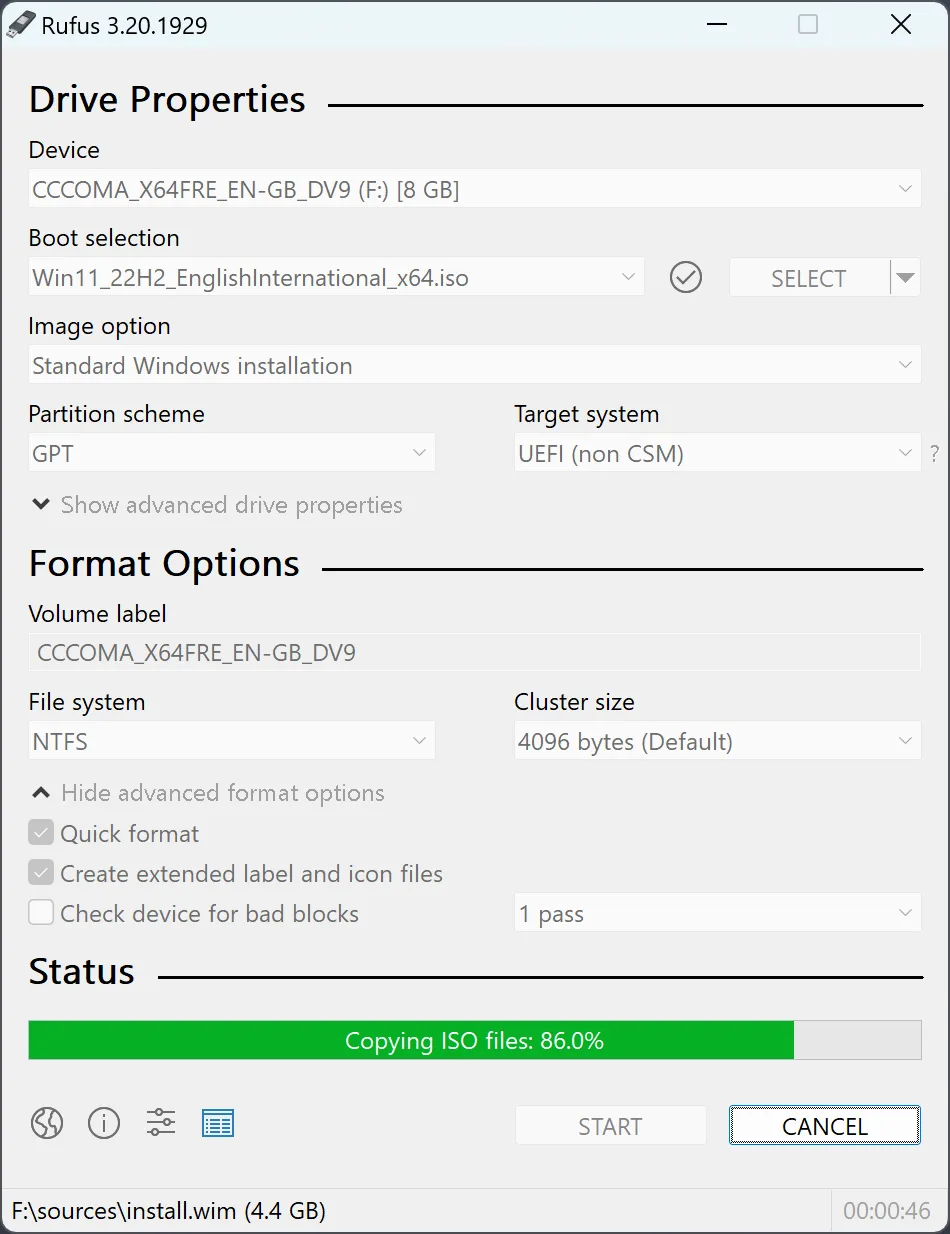
Four controls decide the result, and the program fills in most of them from the ISO you open. At the checked 4.15 release they are labeled Device, Boot selection, Partition scheme and Target system (label strings). Quick format and Create extended label and icon files start switched on (source). The table lists each default and when to change it.
| Setting | Default | Change it for |
|---|---|---|
| Device | First drive in the list | Always confirm it is the spare USB |
| Partition scheme and Target system | Filled in from the ISO | Match the target PC's firmware |
| Quick format | On | Leave on |
| Check device for bad blocks | Off; 1 pass when on | Suspect or unknown drives |
| Checksums | MD5, SHA-1, SHA-256 | Alt+H adds SHA-512 |
| Update check | Asked on first launch; daily if allowed | Allow it to get security fixes |
How do you avoid erasing the wrong drive?
Drive selection is where data gets lost. Erase warning: the write destroys every partition and file on the selected device, not just one folder. The program hides USB hard drives and SSDs unless you tick List USB Hard Drives, which keeps a backup disk out of the list by default, but a second flash drive always appears. Unplug everything you are not writing to, compare the name and capacity under Device, and read the final warning before confirming. The full walkthrough covers each dialog.
Which file should you download?
Pick the file by the architecture of the PC that runs it: the standard x64 file for most PCs, ARM64 for Windows on Arm, and x86 for 32-bit Windows. The portable x64 file is the same 1.9 MB program as the standard one; the p in its name makes it keep settings in rufus.ini beside it instead of the registry. The file choice guide explains each option, and the download page lists every file's SHA-256 digest and the hash command.
How do you choose UEFI or BIOS?
The firmware choice belongs to the computer that will boot the drive. Run msinfo32 on that PC and read BIOS Mode. For UEFI, which covers every Windows 11 PC, keep GPT with UEFI (non CSM). For Legacy, choose MBR with BIOS (or UEFI-CSM). A drive written for one mode may not appear in the other mode's boot menu. The UEFI or BIOS guide explains the pairs, and the Windows ISO guide covers the Windows User Experience options that appear for Windows 10 and 11 images.
How do you know the result is good?
Check the inputs before writing and the drive after. Compare the ISO's hash with the publisher's value using the checkmark button beside SELECT, which computes MD5, SHA-1 and SHA-256 (tooltip text); the checksum guide explains the result. For a drive of unknown origin, run the bad blocks check, which also catches fake-capacity drives. After READY, eject safely and boot the target PC from the drive. For the program file itself, the safety page covers the Akeo Consulting signature and what the program sends online.
Frequently asked questions
Will Rufus erase my USB?
Yes. Writing a bootable image repartitions and formats the selected device, destroying existing partitions and their files. Back up anything needed, disconnect other removable drives, and confirm the device name and capacity before START.
Does Rufus need a setup wizard?
No. The official site says the application is ready to use once downloaded. The winget package Rufus.Rufus is portable as well: it saves the executable and adds a rufus command instead of a Start menu entry.
Should I choose GPT or MBR?
Choose GPT with UEFI (non CSM) for a PC that boots in UEFI mode, which includes every Windows 11 PC. Choose MBR with BIOS (or UEFI-CSM) for a PC that boots in legacy BIOS mode. Check BIOS Mode in msinfo32 on the target PC.
Is Rufus free and safe?
Rufus is free, GPL-licensed software by Pete Batard, and official files are signed by Akeo Consulting. It goes online only if you allow its update check. Get it from rufus.ie, GitHub, winget or the Microsoft Store and compare the SHA-256 hash.