Short answer
To check an ISO in Rufus, select it under Boot selection and click the checkmark button beside SELECT. The program shows MD5, SHA-1 and SHA-256 for the image; SHA-512 appears only after you turn it on with Alt+H. Compare the full value with the one the ISO's publisher lists before you press START.
How do you check an ISO hash in Rufus?
- Find the publisher's hash. Copy the SHA-256 value from the ISO publisher's own download or checksum page.
- Select the ISO. Under Boot selection, click SELECT and open the ISO file.
- Compute the hashes. Click the checkmark button beside SELECT and wait for the checksum window.
- Compare the values. Compare the SHA-256 line with the publisher's value, character by character from both ends.
- Decide. Write the drive only if the values match; otherwise delete the ISO and download it again.
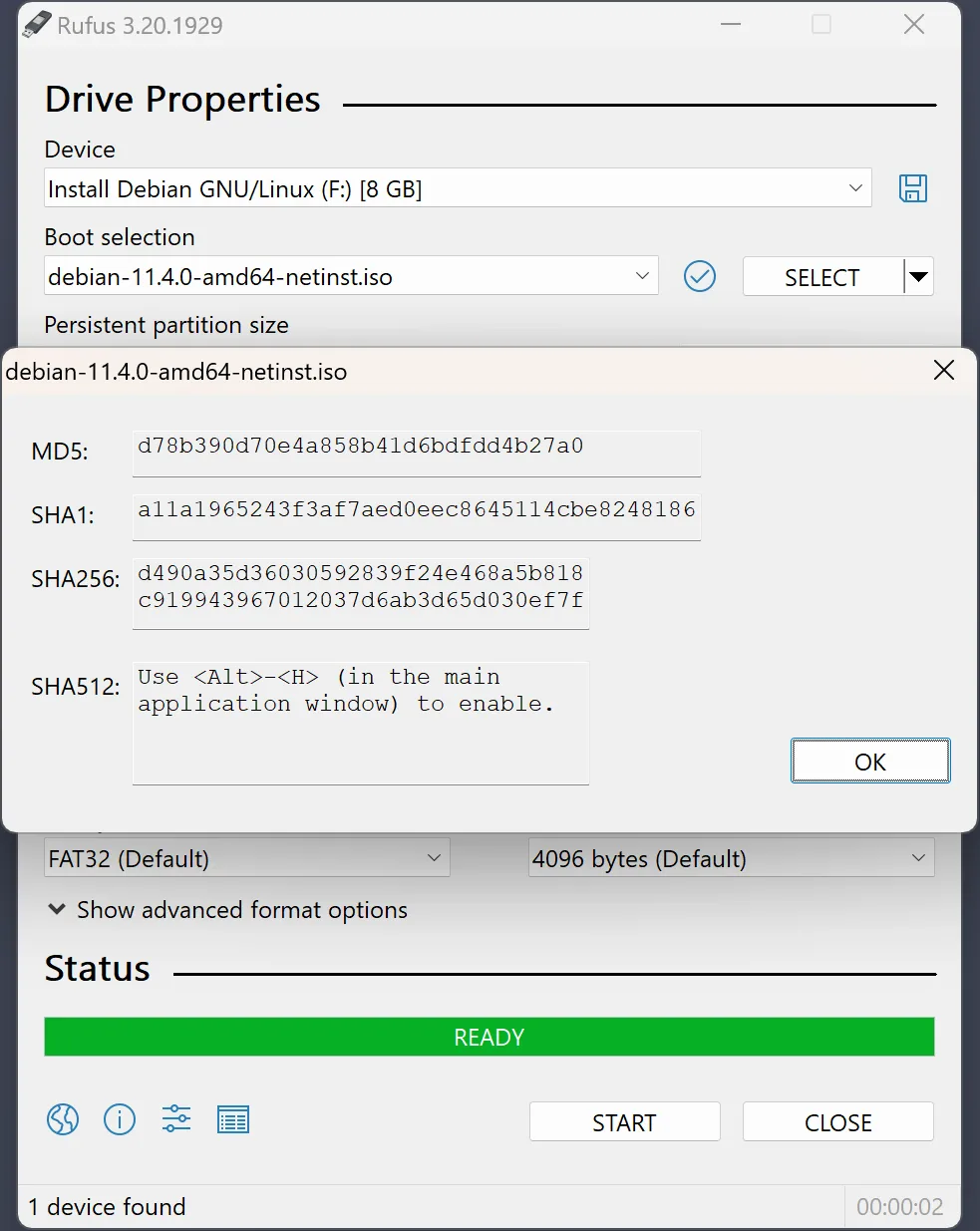
Which hashes does Rufus compute by default?
Rufus computes MD5, SHA-1 and SHA-256 by default, as the tooltip on its checksum button says (label text). SHA-512 is an extra hash that stays off until you press Alt+H, which flips the setting and saves it for later launches (source). The project’s README lists SHA-512 among its features, which is true once that setting is on. SHA-256 is the value most publishers list, so the default set is usually enough.
Where do you get a value to compare against?
A hash is only as trustworthy as the page you copied it from. Take it from the ISO publisher’s own site: Microsoft shows a SHA-256 value on its Windows download pages after you pick a language, and most Linux distributions publish a signed checksum file next to each ISO. A hash printed on a forum or download portal cannot confirm anything, because whoever changed the file could change the value too.
What should you do when the hashes differ?
A mismatch means the file on your disk is not the file the publisher released. The usual causes are an interrupted download, a different edition or language, or a file from a mirror that changed it. Delete the ISO, download it again from the publisher, and compute the hash again before selecting a drive. Do not write a mismatched image to test it: erase warning, the write destroys every partition on the selected USB either way.
Does a hash check replace a boot test?
A hash only covers the ISO. It says nothing about the USB drive or the target PC’s firmware. After a matching hash, set the firmware pair with the UEFI or BIOS guide, write the drive, and boot it on the target computer. If the stick itself is suspect, a bad blocks check tests the media separately.
| Result | Likely cause | What to do |
|---|---|---|
| Matches the publisher's value | The file is the one the publisher released | Continue to Device and START |
| Differs from the publisher's value | Incomplete download, wrong edition or a changed file | Delete it and download again from the publisher |
| Publisher lists only SHA-512 | SHA-512 is off by default | Press Alt+H, then compute again |
| No publisher value exists | Nothing to compare against | Rely on the download source; a hash alone proves nothing |
Frequently asked questions
Does Rufus calculate ISO hashes?
Yes. The checkmark button beside SELECT computes MD5, SHA-1 and SHA-256 for the selected image. SHA-512 is off by default; press Alt+H to turn it on, and the setting is remembered for the next launch.
Does a matching hash prove the ISO is safe?
No. It shows the file matches the reference value you used. If the reference came from an untrusted page, a matching number does not establish authenticity or security. Keep the source check and the boot test as separate steps.
When should I compare the hash?
Compare before writing, so a mismatched or incomplete download is caught without erasing a USB for nothing. The drive selection and the START confirmation still need their own separate erase check.