After downloading Rufus
The standard executable runs directly; prepare the device and image before pressing Start.
Launch the current file
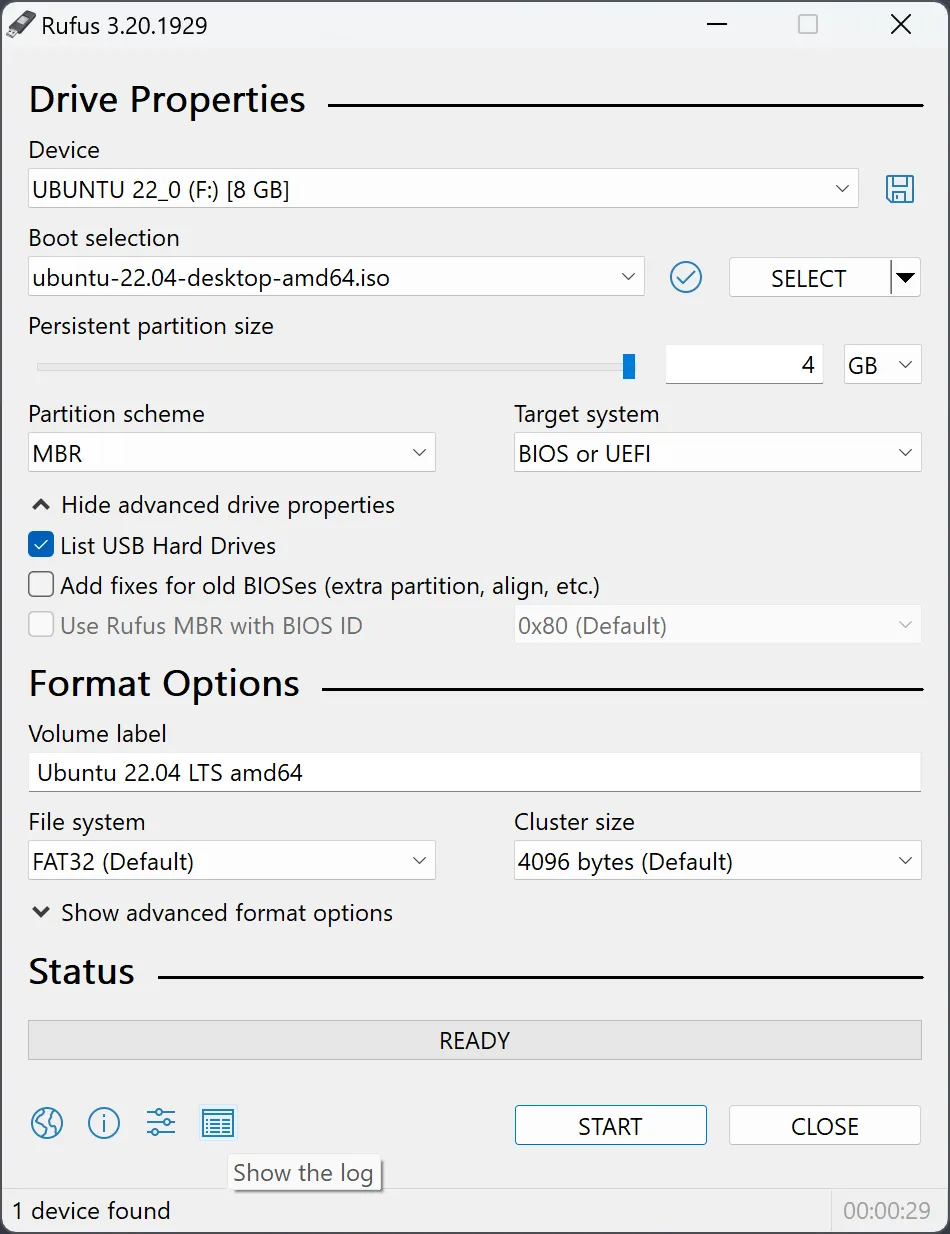
If you used the official direct download, run the saved rufus-*.exe file. The publisher says no setup wizard is required. If you used winget, open a new Terminal window and type rufus: the package is portable, so it adds that command instead of a Start menu entry. Either way, Windows asks for administrator rights, because the program writes directly to disks. The screenshot on this page shows release 3.20 with an Ubuntu ISO; the checked release keeps the same controls.
Identify the spare USB
Insert a drive whose contents you can erase. Check its label, letter, and capacity under Device. Disconnect other removable media so a similarly sized drive is less likely to be selected. Erase warning: starting a write destroys the selected USB's existing partitions and files, not just one visible folder. Back up anything needed before continuing.
Choose the trusted image
Use Boot selection to select an ISO from its publisher. A Windows installation image should come from Microsoft; another operating system image should come from its own project. The program may offer an ISO-mode or DD-mode choice for some images. Read the prompt and the publisher's media instructions before choosing. The Windows ISO guide covers optional Windows setup controls without treating them as universal defaults.
Set the boot target
Read the target computer's firmware documentation. Match Partition scheme and Target system accordingly; GPT with UEFI and MBR with BIOS or UEFI-CSM are different paths. The UEFI or BIOS guide explains why a drive made for one mode may not boot in the other. Avoid guessing based only on the age of the PC or the ISO file name.
Review, write, and test
Immediately before Start, review Device, capacity, ISO, partition scheme, and target system again. Erase warning: do not accept the confirmation until you are certain the selected drive is the spare one and its contents are backed up. Wait for the status to show completion, safely eject, and test the drive in the intended target's boot menu if possible. A complete status proves that the application finished writing; it does not alone prove firmware compatibility or that the target machine will boot. See the full walkthrough for recovery steps if the boot test fails.
Keep the result and inputs straight
Label the finished USB with the image name, date, and intended target firmware. Keep a separate copy of the ISO and any publisher checksum so you can recreate the media later if the drive fails. Do not treat the USB as a backup of files that were previously on it; the write replaced its layout. If the boot menu does not show it, return to the image, partition and target choices before trying the drive on another PC. A second write to the same spare drive is reasonable only after the cause is understood and the device has been rechecked.